Basic:
◆ Position Value block
Block the position value of the "phrase_start" event will automatically fill in the position input for each jutsu feature.
◆ Hidden Symbol
Certain symbols will not appear in the lyrics, this will be useful in creating unique lyrics.
Example: " - " (hyphen), " _ " (underscore), " * " (asterisk), you can also use tags (<i></i>), etc.
◆ Element / Tags
Here are the tags that work on lyrics.
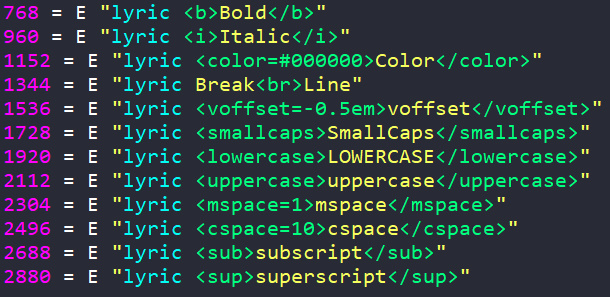
◆ Symbols
We have collected the symbols that work on the lyrics. You can get the symbol by pressing the symbol in the Symbol Picker widget (bottom right of the window), and the symbol will automatically be copied to the clipboard. You can also get it by bringing up the Get Symbol window (Alt+S), there is also a show txt button which contains symbols compiled by Ismaya Melasrana.
◆ Custom Font
You can use a custom font that can be displayed on the lyrics with the Weird Text Generator (Alt+W) feature. This feature converts plain text to a custom font, and you just need to copy it.
◆ Global Event Grouping
Global Event Grouping is a basic technique for manipulating lyrics. This is done by positioning Global Events closely together in a sequential order.
• Grouping 3 Layers: The lyric phrase will not appear to have a SlideUp transition.
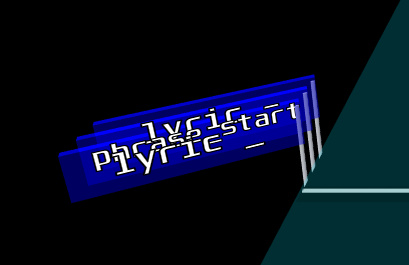
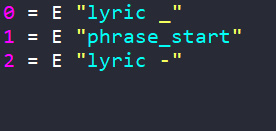
• Grouping 5 Layers: The event of the lyric phrase in the middle will appear to be skipped.
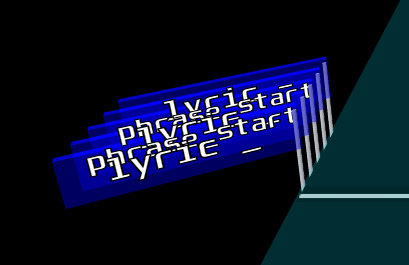
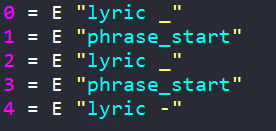
Add Jutsu (Alt+1) is a feature to make it easier for you to create Global Event Grouping. "No SlideUp Transition" will generate 3 layer events. "Hide Next Phrase" and "Fake Next Phrase" will generate 5 event layers.
Advanced:
After understanding the basics of manipulating lyrics, now use your creativity to create something cool with your lyrics.
◆ Lyric Color (method 1)
Apply a custom color to a lyrical phrase with a simpler method.
◆ Lyric Color (method 2)
Applies a custom color to a lyrical phrase by creating a 'color' tag for each syllable.
◆ Kan2Rom
Converts lyrics from Kanji text to Romaji text for one lyric phrase for each syllable (usually used for Japanese song lyrics). You can also use other writing systems such as Hangeul and others.
◆ Playing Note Symbol
The symbol that follows the Note is generated by combining Global Event Grouping (3/5 Layer), tag color, and symbol.
◆ Translation on Next Phrase
To implement this, you apply Add Jutsu to the next "start_phrase" of the current phrase. Select the "Fake Next Lyric" option, then type input fake lyric with the lyric translation of the current phrase.
◆ Exercise Your Creativity
Shortcut List:
| Feature |
Shortcut |
Description |
| Open File |
Ctrl + O |
Open Charts File |
| Save File |
Ctrl + S |
Save Charts File |
| Find |
Ctrl + F |
Find Text in PlainText Tabs |
| Replace All |
Ctrl + H |
Replace All Text in PlainText Tabs |
| Zoom In |
Ctrl + = |
Zoom In Text |
| Zoom Out |
Ctrl + - |
Zoom Out Text |
| Color Picker |
Alt + A |
Shows the 'Color Picker' feature window |
| Get Symbol |
Alt + S |
Shows the 'Get Symbol' feature window |
| Weird Text Generator |
Alt + W |
Shows the 'Weird Text Generator' feature window |
| Undo Jutsu |
Alt + Z |
Undo/restore the script before applying the jutsu |
| Add Jutsu |
Alt + 1 |
Shows the 'Add Jutsu' feature window |
| Lyric Color (method 1) |
Alt + 2 |
Shows the 'Lyric Color (method 1)' feature window |
| Lyric Color (method 2) |
Alt + 3 |
Shows the 'Lyric Color (method 2)' feature window |
| Kan2Rom |
Alt + 4 |
Shows the 'Kan2Rom' feature window |
| Undo Jutsu |
Alt + Z |
Undo/restore the script before applying the jutsu |
| Toggle Display |
Alt + D |
Enable or Disable the 'Display Lyrics' feature |
| Toggle Treeview |
Alt + Q |
Show or Close the 'Treeview' widget |
| Toggle TempText |
Alt + E |
Show or Close the 'TempText' widget |
| Switch Tabs |
Ctrl + Tab |
Switching Tabs |
| Insert Bold Tag |
Ctrl + B |
Insert Bold '<b>' tag |
| Insert Italic Tag |
Ctrl + I |
Insert Italic '<i>' Tag |
| Insert Break Tag |
Ctrl + K |
Insert Break '<br>' Tag |
| Insert Color Tag |
Ctrl + L |
Insert Color '<color=#>' Tag |
| Insert Subscript Tag |
Ctrl + ; |
Insert Subscript '<sub>' Tag |
| Insert Superscript Tag |
Ctrl + ' |
Insert Superscript '<sup>' Tag |
| Insert Voffset Tag |
Ctrl + J |
Insert Vertical Offset '<voffset=0>' Tag |
| Insert Smallcaps Tag |
Ctrl + / |
Insert Smallcaps '<smallcaps>' Tag |
| Insert Lowercase Tag |
Ctrl + , |
Insert Lowercase '<lowercase>' Tag |
| Insert Uppercase Tag |
Ctrl + . |
Insert Uppercase '<uppercase>' Tag |
| Insert MSpace Tag |
Ctrl + M |
Insert Monospacing '<mspace=0>' Tag |
| Insert CSpace Tag |
Ctrl + N |
Insert Character Spacing '<cspace=0>' Tag |
Manual adjustment in 'setting.ini':
◆ [Setting]
path = D:/Clone Hero/song
temp_path = D:/Clone Hero/song/Artist - Title
'path' is the directory folder address in the Treeview widget.
'temp_path' is the temporary directory address used for the Open File, Save File, and File Chart reading features.
font = Consolas,18,-1,5,50,0,0,0,0,0,Regular
font_family = Consolas
font_size = 18
font_style = Regular
font_color = #FFF
Several variables will apply font settings to the PlainText Lyrics tab and the Display Lyrics tab.
background_color = #282a36
'background_color' is the background color setting for the PlainText Lyrics tab and the Display Lyrics tab.
landing = True
display = True
treeview = True
temptext = False
The following variables apply the status of the Landing Page window and the feature widget toggle.
◆ [Highlight]
positionformat = #FF00FF
valueformat = #F5FF5E
richtagformat = #00FF7F
eventnameformat = #03FCF4
'positionformat' is the color of the Position in the Events syntax.
'valueformat' is the color of values or content in the Events syntax other than Event Names.
'richtagformat' is the color of tags in the Events syntax.
'eventnameformat' is the color of event names in the Events syntax.
◆ [SetLyric]
closing_lyric = <i></i>
hidden_lyric = -
'positionformat' is the color of the Position in the Events syntax.
'valueformat' is the color of values or content in the Events syntax other than Event Names.
◆ [Shortcut]
toggle_display = Alt+D
toggle_treeview = Alt+Q
toggle_temptext = Alt+E
colorpicker = Alt+A
getsymbol = Alt+S
weirdtext = Alt+W
addjutsu = Alt+1
colorjutsu1 = Alt+2
colorjutsu2 = Alt+3
kan2romjutsu = Alt+4
undo_jutsu = Alt+Z
b_tag = Ctrl+B
i_tag = Ctrl+I
color_tag = Ctrl+L
br_tag = Ctrl+K
voffset_tag = Ctrl+J
smallcaps_tag = Ctrl+/
lowercase_tag = Ctrl+,
uppercase_tag = Ctrl+.
mspace_tag = Ctrl+M
cspace_tag = Ctrl+N
sub_tag = Ctrl+;
sup_tag = Ctrl+'
All variables in the Shortcut section are key combinations that you can use for the features available in the application.